Based on the LMS platform you are using, choose from the following options to receive step-by-step instructions on how to integrate with Expert TA.
These instructions are designed to help instructors and administrators configure single sign-on and grade sync between the Canvas Learning Management System and Expert TA.
-
In Expert TA, on an existing class, enable LMS integration by selecting “Edit Class” from the Class Menu, and clicking “Configure my Class for LMS Integration.”

-
Select “Canvas” from the dropdown menu, then select “LTI 1.1” from the new dropdown menu that appears to the right. Click “Proceed With Integration.”


-
You will now see the LMS Integration Information displayed under the class details.

-
In Canvas, navigate to the course with which you would like to pair. Then select “Settings,” “Apps”, “View App Configurations”, then choose the “+ App” option.


-
Name your App “Expert TA” and copy-and-paste the Consumer Key, Shared Secret, and Launch URL associated with your Expert TA class into the appropriate fields. The Domain should be “lti.theexpertta.com” and the Privacy will need to be set to “Public.” Submit your changes.

-
Now that the LMS connection has been configured, you are ready to create assignments. Expert TA assignments will need to be linked individually to Canvas.
-
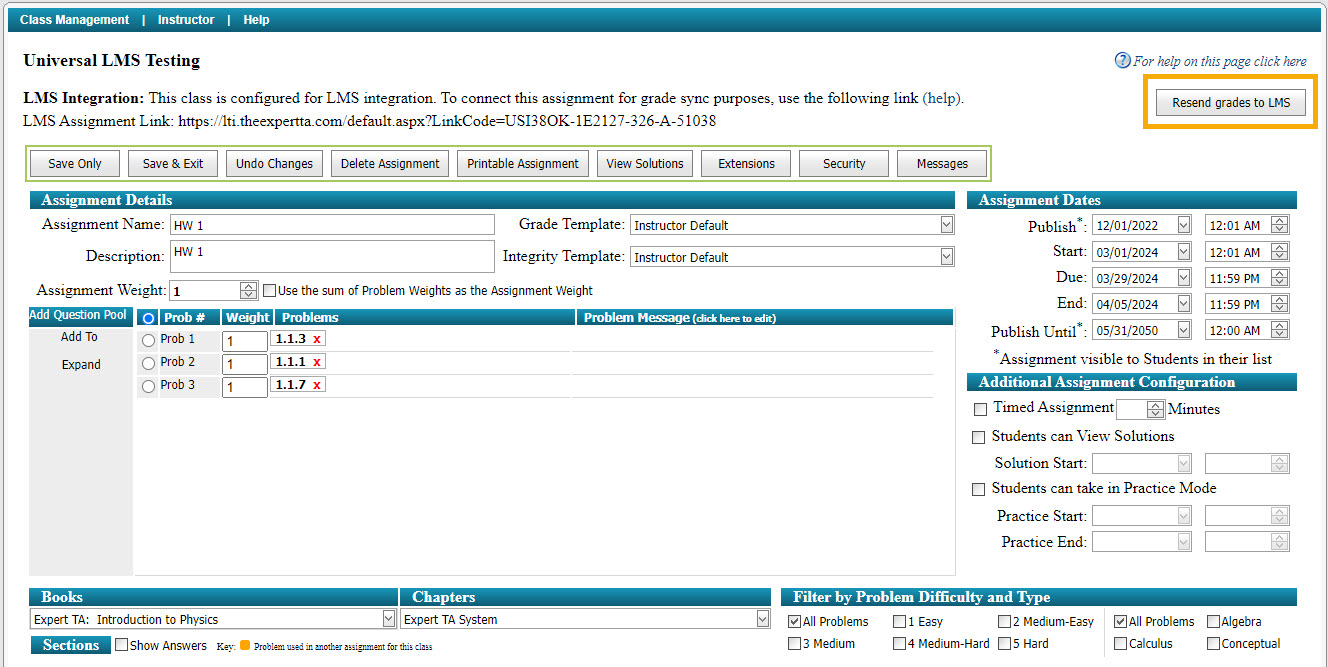
Create your assignment in Expert TA by choosing “Create Class Assignment” from the Class Menu. Give the assignment a name and description, adjust the dates accordingly, and add problems. Click “Save” and you will see an LMS Assignment link generated at the top of the page.
IMPORTANT: DO NOT SKIP THE NEXT STEP! Attempting to add in the LMS assignment link as a hyperlink will cause issues.

-
Create a corresponding assignment in Canvas. Under “Submission Type” select “External Tool.” Paste the LMS Assignment link from Expert TA, and select the “Load This Tool In A New Tab” option.
IMPORTANT: Do not select “Find” for this step. It will alter the link you have entered which will cause an error when attempting to enter the assignment.

-
If you would like to have assignment due dates appear in students’ Canvas calendars and be able to receive notifications, you will want to set a Due date in “Manage Due Dates and Assign To”.
IMPORTANT: You will also need to set “Available from” and “Until” dates or else the assignment link will go away after the Due date, making it impossible for students to do late work or re-sync grades if needed. We recommend that you set the “Available from” and “Until” dates as the first and last dates of the term. Also, the Due date should match the Due date in Expert TA, and if you allow for late work, the Expert TA End Date will take care of that grading.

-
Repeat the previous three steps for linking Expert TA with each subsequent assignment you create for your class.
These instructions are designed to help instructors and administrators configure single sign-on and grade sync between the Canvas Learning Management System and Expert TA.
-
IMPORTANT: Your school will need to be connected to Expert TA at an institutional level. If you are unsure if your school has this level of connection, you can reach out to your Expert TA account manager or the IT department at your school.
-
If your institution is connected to Expert TA with LTI 1.3, you are ready to create assignments. Expert TA assignments will need to be linked individually to Canvas.
-
In Expert TA, on an existing class, enable LMS integration by selecting “Edit Class” from the Class Menu, and clicking “Configure my Class for LMS Integration.”
-
Select “Canvas” from the dropdown menu, then select “LTI 1.3” from the new dropdown menu that appears to the right. Click “Proceed With Integration.”

-
Create your assignment in Expert TA by choosing “Create Class Assignment” from the Class Menu. Give the assignment a name and description, adjust the dates accordingly, and add problems. Click “Save” and you will see an LMS Assignment link generated at the top of the page.
IMPORTANT: DO NOT SKIP THE NEXT STEP! Attempting to add in the LMS assignment link as a hyperlink will cause issues.
-
Create a corresponding assignment in Canvas. Under “Submission Type” select “External Tool.” Paste the LMS Assignment link from Expert TA, and select the “Load This Tool In A New Tab” option.
IMPORTANT: Do not select “Find” for this step. It will alter the link you have entered which will cause an error when attempting to enter the assignment.
-
If you would like to have assignment due dates appear in students’ Canvas calendars and be able to receive notifications, you will want to set a Due date in “Manage Due Dates and Assign To”.
IMPORTANT: You will also need to set “Available from” and “Until” dates or else the assignment link will go away after the Due date, making it impossible for students to do late work or re-sync grades if needed. We recommend that you set the “Available from” and “Until” dates as the first and last dates of the term. Also, the Due date should match the Due date in Expert TA, and if you allow for late work, the Expert TA End Date will take care of that grading.
-
Repeat the previous three steps for linking Expert TA with each subsequent assignment you create for your class.
IMPORTANT: Your IT department should fully configure BlackBoard to support Expert TA as an approved LTI provider before creating or attempting to link any individual classes to Expert TA. If any classes are created before the LTI provider support is fully set up, class assignments will not have the required fields to assign linked assignments.
-
Once logged into Blackboard, navigate to the System Admin tab in order to set up the LTI Tool Provider settings.

-
Under “Manage Global Properties”, enable the settings to match the following options boxed in red and submit.

-
Under “Register Provider Domain”, enable the settings to match the following options boxed in red and submit. In some institutions, the IT department may want to be more restrictive regarding approval, however, Expert TA must be an approved provider fully configured in order to link assignments. Allowing only links to approved tool providers could be the correct answer for an Institution that wishes to lock this feature down. All other settings should be considered required to configure the process fully.

Once the Blackboard LTI provider settings have been configured, follow the updated Blackboard integration instructions to configure your Expert TA class and link your assignments.
These instructions are designed to help instructors and administrators configure single sign-on and grade sync between the Brightspace/D2L Learning Management System and Expert TA.
-
In Expert TA, on an existing class, enable LMS integration by selecting “Edit Class” from the Class Menu, and clicking “Configure my Class for LMS Integration.”
-
Select “Desire 2 Learn” from the dropdown menu, then Click “Proceed With Integration.”


-
You will now see the LMS Integration Information displayed under the class details.
IMPORTANT: Save this information! You will be using it to connect each assignment in Brightspace/D2L to Expert TA.
Once the LMS Integration Information has been generated in Expert TA, follow the updated Brightspace/D2L integration instructions to configure and link your Expert TA assignments.
These instructions are designed to help instructors and administrators configure single sign-on and grade sync between the Moodle Learning Management System and Expert TA.
-
In Expert TA, on an existing class, enable LMS integration by selecting “Edit Class” from the Class Menu, and clicking “Configure my Class for LMS Integration.”
-
Select “Moodle” from the dropdown menu, then click “Proceed With Integration.”


-
You will now see the LMS Integration Information displayed under the class details.
IMPORTANT: Save this information! You will be using it to connect each assignment in Moodle to Expert TA.
Once the LMS Integration Information has been generated in Expert TA, follow the updated Moodle integration instructions to configure and link your Expert TA assignments.
In the event of a grade change within an Expert TA assignment, grades can be resent back to any LMS platform by clicking the “Resend Grades” button within the Expert TA assignment the grades are associated with.